How to upgrade TP-Link ADSL Modem Router (TrendChip Solution)
 159411
Notice:
- Please verify the hardware version of your device for the firmware version.Wrong firmware upgrading may
damage your device and void the warranty.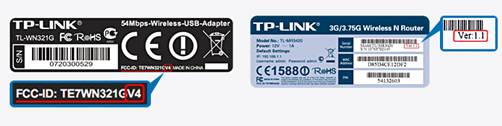
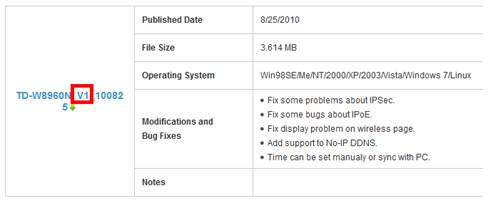
- After you downloaded the firmware from TP-Link website, please use decompression software such as
WinZIP orWinRAR to extract the firmware file to a folder; - Do NOT upgrade the firmware via wireless connection;
- Do NOT turn off the power or cut down the Ethernet cable during upgrade process;
-
Please write down all current settings as a backup and enter them manually after upgrading.
Step 1 Log into the ADSL Modem Router by typing http://192.168.1.1 in the address bar of the web browser (such as Internet Explorer, Firefox). The User Name and Password are both admin unless you have changed it before.

Step 2 Click Maintenance ->Firmware click the Browse button to choose the firmware you already extracted in the folder.
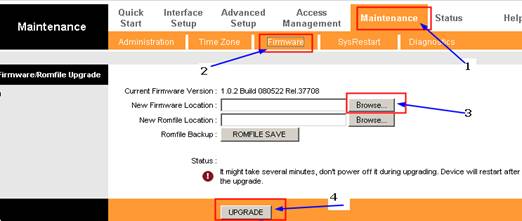
Step 3 Click the UPGRADE button. The device will reboot automatically after the upgrading has been finished. Please wait about 3 minutes.
Step 4 Click Status-> Device Info, verify that the router’s firmware has been upgraded.
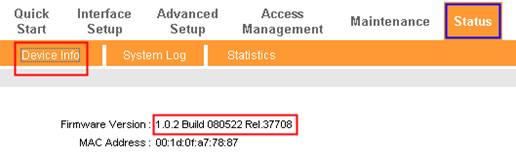
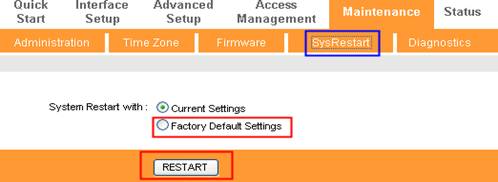
Step 5 You have to restore the device to factory default to make the new functions take effect; Click Maintenance->SysRestart, choose Factory Default Settings, Click RESTART button.
Step 6 After restoring factory default, please login http://192.168.1.1 and re-enter the settings you have written down before upgrading.
Is this faq useful?
Your feedback helps improve this site.
3.0-F1_1529482239075s.jpg)

TP-Link Community
Still need help? Search for answers, ask questions, and get help from TP-Link experts and other users around the world.